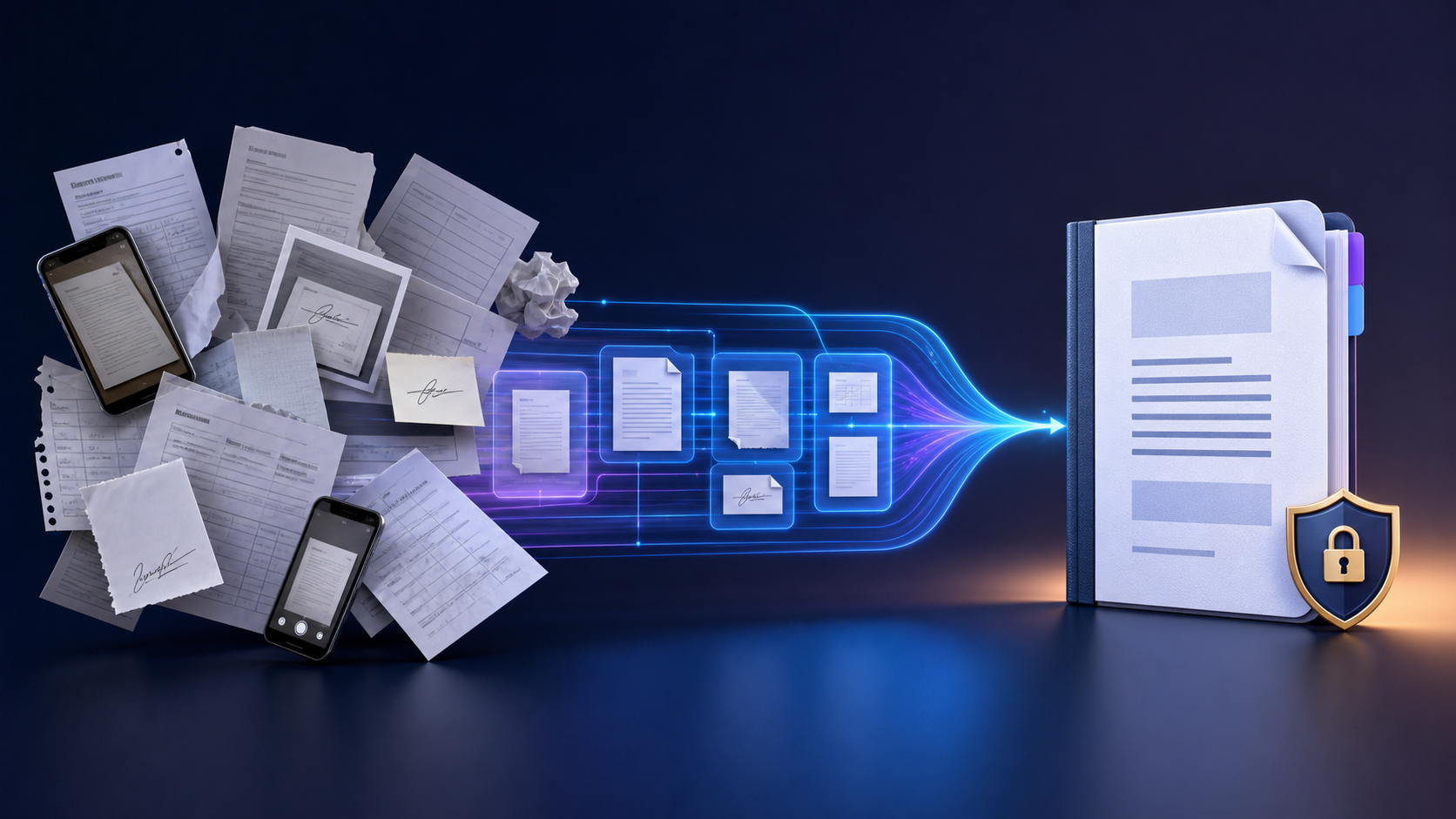
“Just send me the PDF” sounds like the final step. In practice, it is often the beginning of a small document crisis. One person has separate scans, another has photographs, a signature is missing, two pages are upside down, and the finished attachment is too large for the portal that requested it.
The curious thing about PDF is that its greatest strength also creates these problems. A PDF preserves a page as a finished object, but real work rarely arrives finished. It arrives as fragments that must be assembled, checked, protected, and adapted without losing the appearance everyone expects.
The document is usually a process, not a file
Consider an application packet. The form may be one PDF, evidence may arrive as three separate PDFs, and receipts may exist only as phone photographs. The sensible first step is to convert those images with the OpenToolkit JPG to PDF tool, then use the PDF Merger to place every component in the required order.
That order is not always correct on the first attempt. Blank pages appear, landscape pages face the wrong direction, and a supporting page belongs somewhere else. The PDF Organizer can reorder, rotate, duplicate, or remove pages without rebuilding the entire packet.
Submission limits create a second problem
A document that looks ordinary on screen may contain high-resolution scans on every page. Email systems and application portals often impose limits that have nothing to do with how important the document is. The PDF Compressor reduces size by re-rendering pages, which is useful for scanned material when a modest reduction in image detail is acceptable.
Compression should be a delivery step, not the only copy you keep. Preserve the clearest original, compress a duplicate, and inspect small text, stamps, and signatures before submitting it.
Sometimes the receiver wants less—or something different
A reviewer may request only pages 4–7. The PDF Splitter can extract the range instead of exposing the entire document. If a website accepts images rather than PDF, the PDF to JPG converter can turn each page into a separate image.
These conversions change the nature of the document. An image no longer has selectable text, and re-rendering can reduce accessibility. Choose the receiver’s required format rather than converting by habit.
A black rectangle is not necessarily redaction
Covering a name with a drawing tool can leave the original text inside the file. Safe redaction requires removing the sensitive area from the rendered page. The PDF Redaction tool is designed for permanent visual removal, but the result should still be reopened and checked before sharing.
For material that should remain visible but needs context or ownership, use the PDF Sign & Watermark tool to add signatures, watermarks, or page numbers. Redaction removes information; annotation adds information. Confusing the two is a privacy risk.
The practical workflow
Keep untouched source files in a separate folder.
Convert photographs and assemble the complete packet.
Organize pages before adding page numbers or signatures.
Split away anything the recipient does not need.
Redact sensitive information permanently, then inspect the output.
Compress only the delivery copy and verify readability.
A reliable PDF is not simply one that opens. It contains the right pages, in the right order, at a useful size, with private material actually removed. Treating the file as a small publishing workflow prevents the last-minute surprises hidden inside “just send me the PDF.”